
Using the web UI
Install BarkVisor on a computer using the macOS, Linux, or Windows package guide. Then open http://localhost:7777 on that computer.
That computer is a Device. Your Home contains one or more Devices, and each Workload is a VM or App running on one of them.
Setup and sign-in
Section titled “Setup and sign-in”On first launch, follow the setup wizard to name the Device, register a passkey, and choose an image Library folder. See First launch, including instructions for a remote computer.
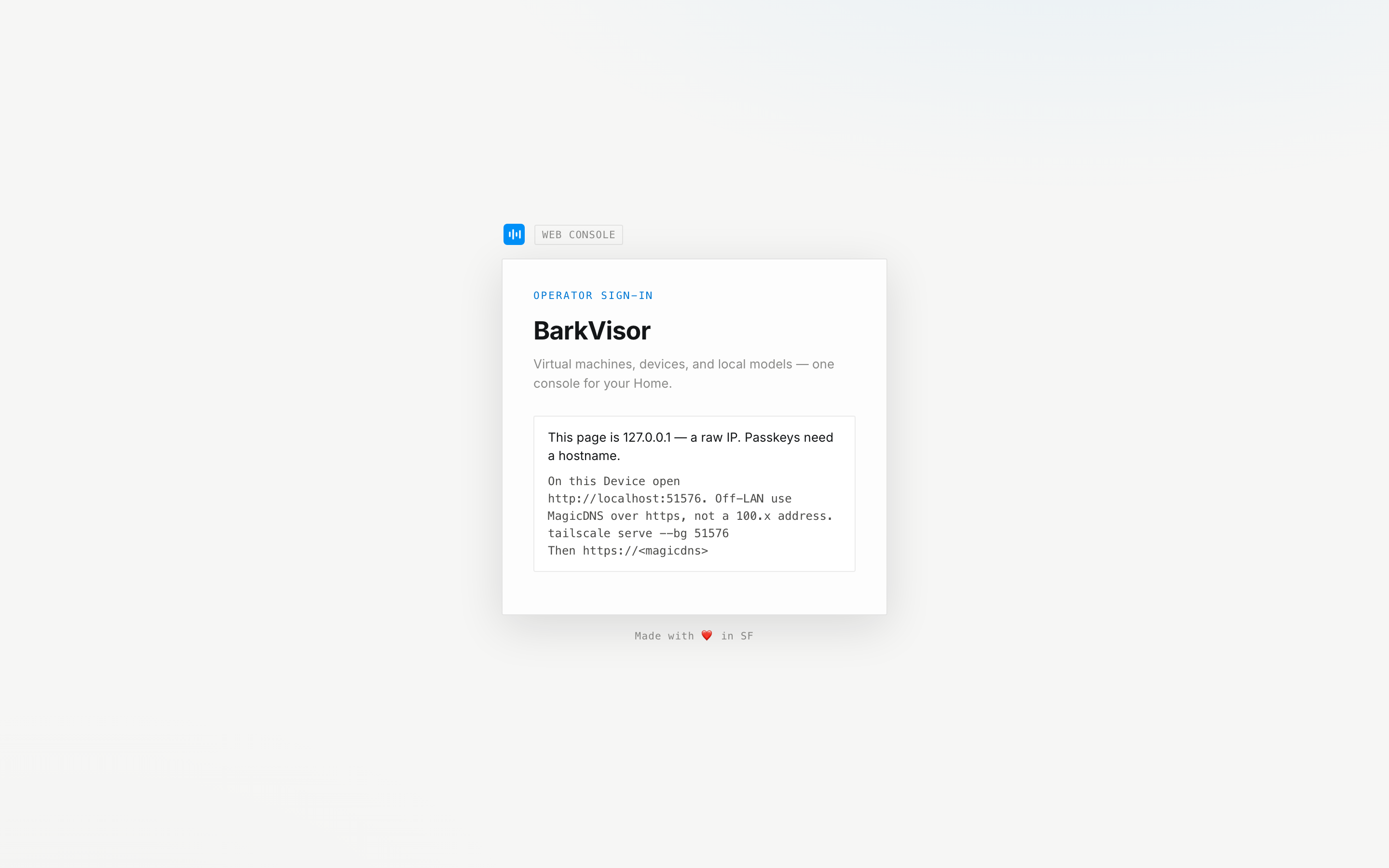
After setup, use Sign in with passkey. Passkeys need localhost or an HTTPS hostname. A raw IP address does not work.
Settings → Security controls whether local or network connections can skip sign-in. To add another computer to this Home, follow Home and pairing.
Navigation
Section titled “Navigation”The sidebar lists the pages below. On small screens, use the menu button to open it.
The Device selector switches between All Devices and one Device. List pages follow that choice. Create VM and Create App have their own Device pickers.
| Page | What you can do |
|---|---|
| Dashboard | See running workloads and problems that need attention |
| Devices | Check your computers, resources, and workload placement |
| Workloads | Create and manage VMs and Apps |
| Ollama | Manage local models and find the completions endpoint |
| Images | Upload, download, and remove OS images |
| Disks | Create and resize VM disks |
| Networks | Configure Device interfaces and VM networks |
| Logs | Search events and download diagnostics |
| Settings | Manage pairing, sign-in, keys, catalogs, and updates |
The status strip above the page shows counts of running, failed, and stopped workloads, plus unreachable Devices. The bottom of the sidebar has appearance and sign-out controls.
Access roles
Section titled “Access roles”An Admin can manage the Home. An Inference user lands on Ollama and can use models, but cannot administer Devices or workloads.