
Workloads
Workloads lists VMs and Apps across the Devices selected in the sidebar. Click a row to open VM details or App details.
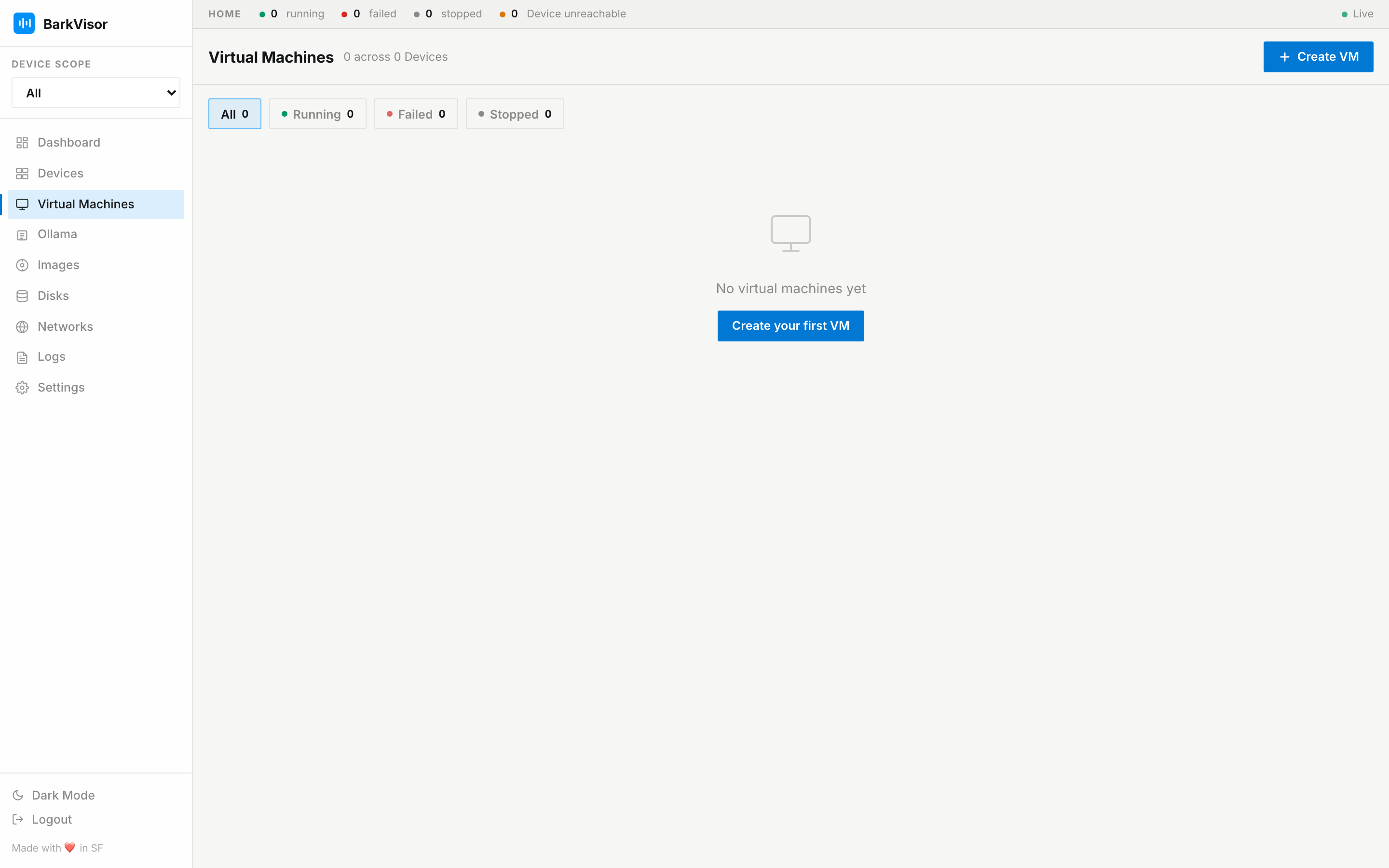
Health filters
Section titled “Health filters”Filter chips above the table show counts at a glance:
- All
- Running
- Failed
- Stopped
The counts update live; a failed count above zero is your cue to visit the Dashboard.
The table
Section titled “The table”| Column | Meaning |
|---|---|
| Name | Workload name — click to open details |
| Device | Machine running it |
| OS | Guest OS / image it was created from |
| CPU · Mem | Allocated vCPUs and memory |
| Ports | Forwarded host ports |
| Status | Running, failed, or stopped |
Create VM
Section titled “Create VM”Create VM opens the 3-step wizard (Gallery → Configure → Disk). The full walkthrough is in Create a Workload.
Use Create App for a Docker Compose app. See Apps.
Related
Section titled “Related”- Apps — Docker Compose workloads
- Workload details
- Images — pick what to boot
- Disks — attach extra disks